Robusta AI
Access multiple AI models from different providers through Robusta's unified API, without managing individual API keys.
Robusta Feature
Robusta AI is available for Robusta customers. It provides access to various AI models through a single managed endpoint.
Overview
Robusta AI simplifies AI model access by:
- Multi-provider access: Access a wide variety of models from different providers (OpenAI, Anthropic, and others) through a single interface
- No API key management: Use models from multiple providers without managing individual API keys
Prerequisites
- Robusta account: You must have an active Robusta platform subscription
- Kubernetes deployment: Robusta AI is only available when running HolmesGPT as a server in Kubernetes (not available in CLI mode)
- Robusta platform integration: Your cluster must be connected to the Robusta platform with a valid
robusta_sinktoken - Robusta version: Requires Robusta version 0.22.0 or higher
- Robusta UI sink enabled: The Robusta UI sink must be configured and operational
Configuration
Robusta AI is automatically enabled when:
- HolmesGPT is deployed in Kubernetes via the Robusta Helm chart
- A valid Robusta sink is configured in the Robusta Helm Chart
- The
ROBUSTA_AIenvironment variable is set totrue
Quick Setup
The simplest way to enable HolmesGPT with Robusta AI is to add this to your Robusta Helm values:
This automatically:
- Deploys HolmesGPT as a server in Kubernetes
- Enables Robusta AI integration
- Sets up the necessary authentication
Manual Configuration
For more granular control, you can manually configure Robusta AI:
Using Existing Robusta Tokens in Secrets
If your Robusta token is already stored in a Kubernetes secret (common in existing Robusta deployments), you can reference it in HolmesGPT configuration:
# Add to generated_values.yaml
holmes:
additionalEnvVars:
- name: ROBUSTA_TOKEN
valueFrom:
secretKeyRef:
name: robusta-token-secret
key: token
- name: ROBUSTA_AI
value: "true"
Common scenarios for existing secrets:
- Existing Robusta UI sink: If you already have a
robusta_sinkconfigured, the token is typically stored in a secret namedrobusta-tokenor similar - Multi-environment deployments: Use the same secret across different namespaces or clusters
- GitOps workflows: Reference existing secrets managed by ArgoCD or Flux
In most cases, no additional configuration is needed. If you have a valid Robusta deployment, HolmesGPT will automatically:
- Authenticate with the Robusta platform
- Fetch available models for your account
- Make them available for selection
Disabling Robusta AI
To explicitly disable Robusta AI (for example, if you prefer using your own API keys):
Selecting a Region
The Robusta platform is hosted in multiple regions. HolmesGPT defaults to the US endpoint. If your Robusta account lives in the EU or AP region, set ROBUSTA_API_ENDPOINT to the matching API URL — pick your region below:
# Add to generated_values.yaml
holmes:
  additionalEnvVars:
    - name: ROBUSTA_AI
      value: "true"
- name: ROBUSTA_API_ENDPOINT
value: "https://api.robusta.dev"# Add to generated_values.yaml
holmes:
additionalEnvVars:
- name: ROBUSTA_AI
value: "true"
- name: ROBUSTA_API_ENDPOINT
value: "https://api.eu.robusta.dev"# Add to generated_values.yaml
holmes:
additionalEnvVars:
- name: ROBUSTA_AI
value: "true"
- name: ROBUSTA_API_ENDPOINT
value: "https://api.ap.robusta.dev"The endpoint must match the region your cluster is connected to in the Robusta platform — using the wrong endpoint will cause authentication and model-discovery failures.
How It Works
- Authentication: HolmesGPT reads your Robusta token from the cluster configuration
- Session creation: A session token is created with the Robusta platform
- Model discovery: Available models are fetched from
${ROBUSTA_API_ENDPOINT}/api/llm/models/v2(default:https://api.robusta.dev/api/llm/models/v2) - Proxy access: Models are accessed through Robusta's proxy endpoint at
${ROBUSTA_API_ENDPOINT}/llm/{model_name}(default:https://api.robusta.dev/llm/{model_name}) - Automatic refresh: Authentication tokens are automatically refreshed when they expire
Available Models
The specific models available depend on your Robusta subscription plan. Typically includes:
- OpenAI models (GPT-4o, GPT-4.1, GPT-5, etc.)
- Anthropic models (Claude 4.0 Sonnet, etc.)
Usage
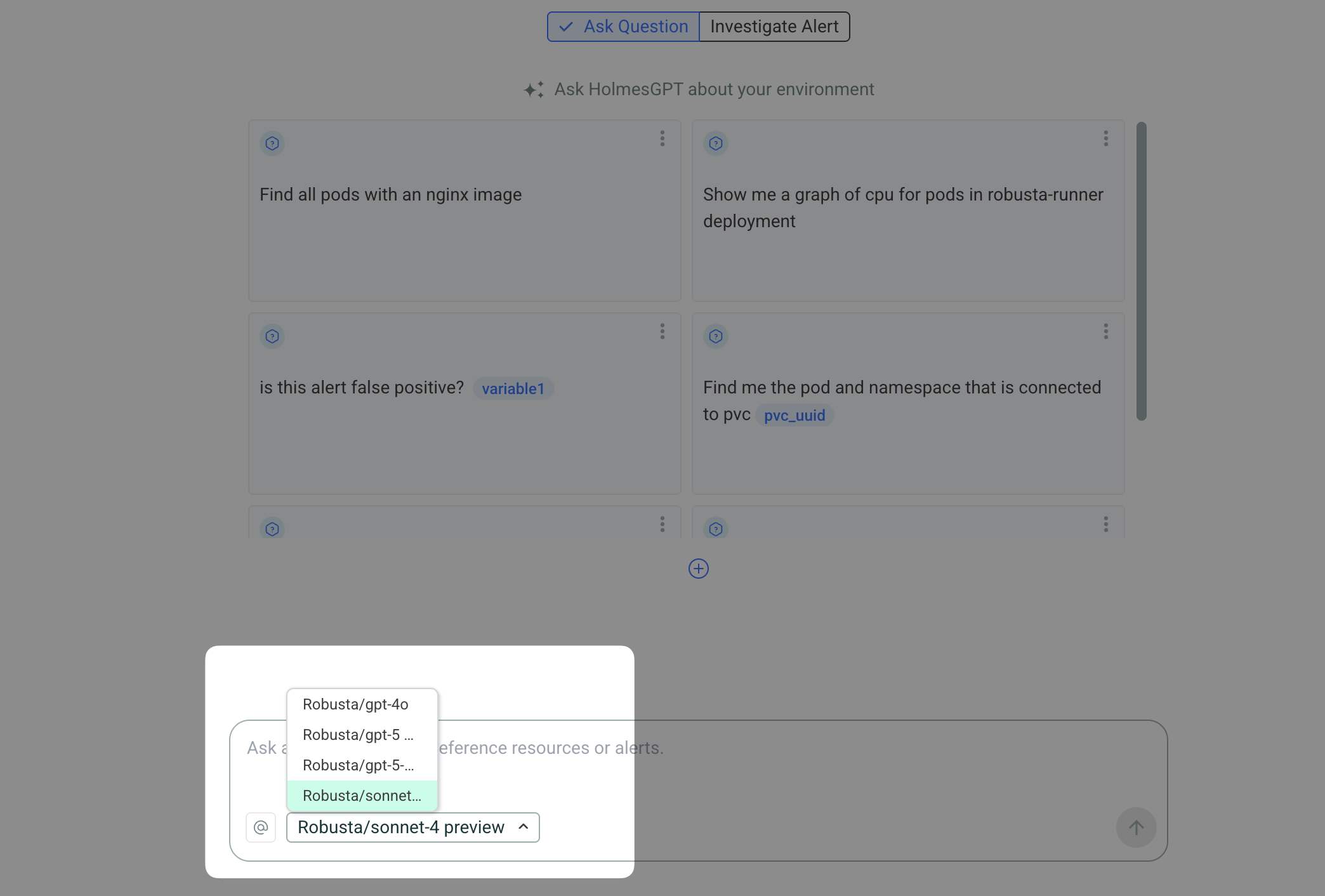
When Robusta AI is enabled, models appear in the model selector dropdown in the Robusta UI. Users can select any available model for their investigations.
Troubleshooting
Models not appearing
Check that:
- Your Robusta token is valid and not expired
- HolmesGPT can reach the Robusta API endpoint for your region (
api.robusta.dev,api.eu.robusta.dev, orapi.ap.robusta.dev) ROBUSTA_API_ENDPOINTmatches the region your Robusta account is in (see Selecting a Region)ROBUSTA_AIis set totrue- Check logs for authentication errors
Environment Variables
| Variable | Description | Default |
|---|---|---|
ROBUSTA_AI |
Enable/disable Robusta AI | Auto-detected |
ROBUSTA_API_ENDPOINT |
Robusta API endpoint. Set per region (https://api.robusta.dev, https://api.eu.robusta.dev, https://api.ap.robusta.dev) or to your on-premise URL. See Selecting a Region. |
https://api.robusta.dev |
See Also
- Using Multiple Providers - Configure multiple AI providers
- Kubernetes Installation - Deploy HolmesGPT in Kubernetes
- Robusta Platform Documentation - Learn more about Robusta platform integration