Install K9s Plugin
Integrate HolmesGPT into your K9s Kubernetes terminal for instant analysis.
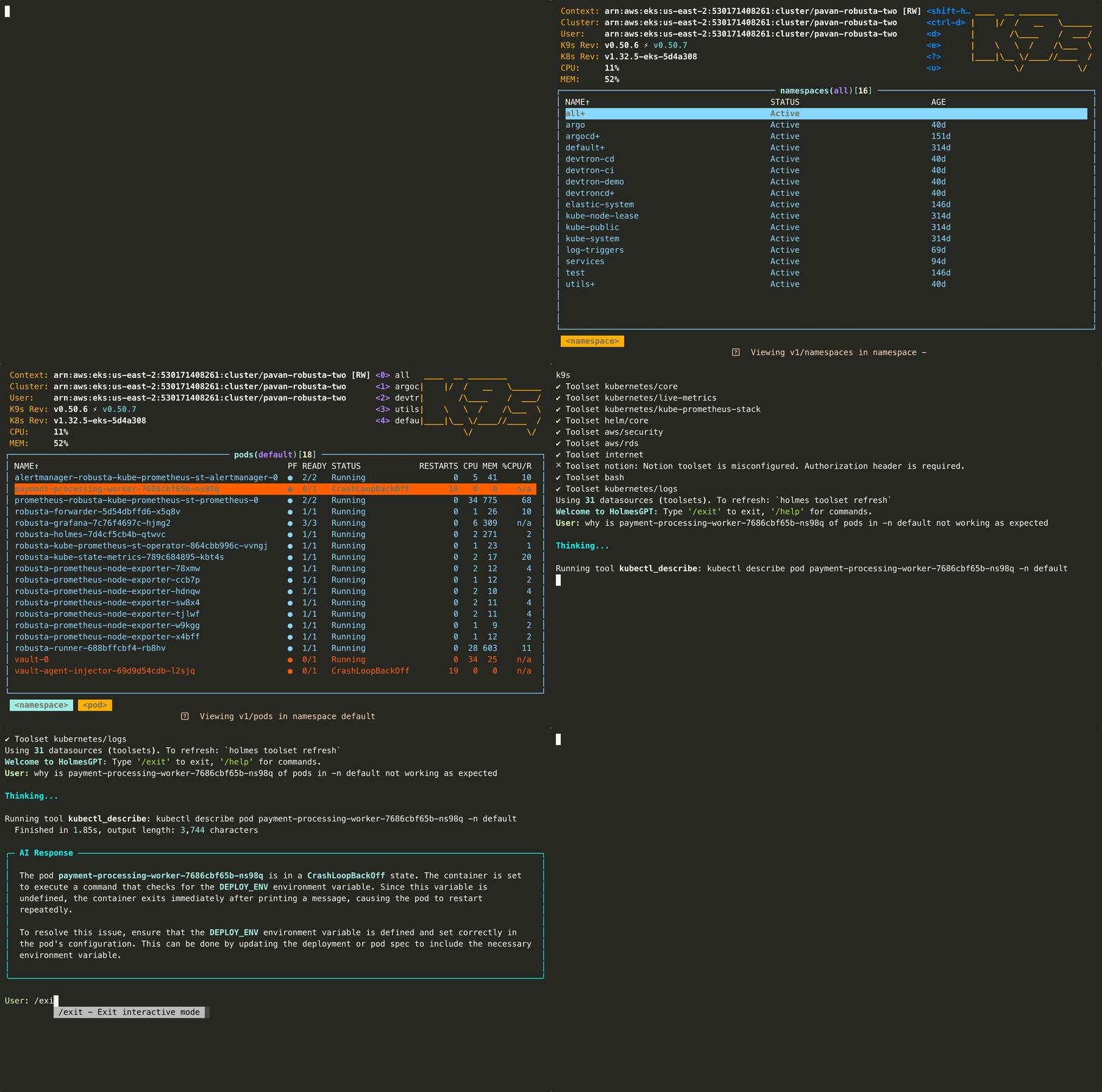
Prerequisites
- K9s must be installed - See the K9s installation guide
- HolmesGPT CLI and API key - Follow the CLI Installation Guide to install Holmes and configure your AI provider
Plugin Options
Basic Plugin (Shift + H) - Quick investigation with predefined question
Add to your K9s plugins configuration file:
- Linux:
~/.config/k9s/plugins.yamlor~/.k9s/plugins.yaml - macOS:
~/Library/Application Support/k9s/plugins.yamlor~/.k9s/plugins.yaml - Windows:
%APPDATA%/k9s/plugins.yaml
Read more about K9s plugins here and check your plugin path here.
plugins:
  holmesgpt:
    shortCut: Shift-H
    description: Ask HolmesGPT
    scopes:
      - all
    command: bash
    background: false
    confirm: false
    args:
      - -c
      - |
        # Check if we're already using the correct context
        CURRENT_CONTEXT=$(kubectl config current-context 2>/dev/null || echo "")
        if [ "$CURRENT_CONTEXT" = "$CONTEXT" ]; then
          # Already using the correct context, run HolmesGPT directly
          holmes ask "why is $NAME of $RESOURCE_NAME in -n $NAMESPACE not working as expected"
        else
          # Create temporary kubeconfig to avoid changing user's system context
          # K9s passes $CONTEXT but we need to ensure HolmesGPT uses the same context
          # without permanently switching the user's kubectl context
          TEMP_KUBECONFIG=$(mktemp)
          kubectl config view --raw > $TEMP_KUBECONFIG
          KUBECONFIG=$TEMP_KUBECONFIG kubectl config use-context $CONTEXT
          # KUBECONFIG environment variable is passed to holmes and all its child processes
          KUBECONFIG=$TEMP_KUBECONFIG holmes ask "why is $NAME of $RESOURCE_NAME in -n $NAMESPACE not working as expected"
          rm -f $TEMP_KUBECONFIG
        fi
        echo "Press 'q' to exit"
        while : ; do
        read -n 1 k <&1
        if [[ $k = q ]] ; then
        break
        fi
        done
Advanced Plugin (Shift + Q) - Interactive plugin with custom questions
Add to your K9s plugins configuration file:
- Linux:
~/.config/k9s/plugins.yamlor~/.k9s/plugins.yaml - macOS:
~/Library/Application Support/k9s/plugins.yamlor~/.k9s/plugins.yaml - Windows:
%APPDATA%/k9s/plugins.yaml
Read more about K9s plugins here and check your plugin path here.
plugins:
  custom-holmesgpt:
    shortCut: Shift-Q
    description: Custom HolmesGPT Ask
    scopes:
      - all
    command: bash
    background: false
    confirm: false
    args:
      - -c
      - |
        INSTRUCTIONS="# Edit the line below. Lines starting with '#' will be ignored."
        DEFAULT_ASK_COMMAND="why is $NAME of $RESOURCE_NAME in -n $NAMESPACE not working as expected"
        QUESTION_FILE=$(mktemp)

        echo "$INSTRUCTIONS" > "$QUESTION_FILE"
        echo "$DEFAULT_ASK_COMMAND" >> "$QUESTION_FILE"

        # Open the line in the default text editor
        ${EDITOR:-nano} "$QUESTION_FILE"

        # Read the modified line, ignoring lines starting with '#'
        user_input=$(grep -v '^#' "$QUESTION_FILE")

        echo "Running: holmes ask '$user_input'"
        # Check if we're already using the correct context
        CURRENT_CONTEXT=$(kubectl config current-context 2>/dev/null || echo "")
        if [ "$CURRENT_CONTEXT" = "$CONTEXT" ]; then
          # Already using the correct context, run HolmesGPT directly
          holmes ask "$user_input"
        else
          # Create temporary kubeconfig to avoid changing user's system context
          # K9s passes $CONTEXT but we need to ensure HolmesGPT uses the same context
          # without permanently switching the user's kubectl context
          TEMP_KUBECONFIG=$(mktemp)
          kubectl config view --raw > $TEMP_KUBECONFIG
          KUBECONFIG=$TEMP_KUBECONFIG kubectl config use-context $CONTEXT
          # KUBECONFIG environment variable is passed to holmes and all its child processes
          KUBECONFIG=$TEMP_KUBECONFIG holmes ask "$user_input"
          rm -f $TEMP_KUBECONFIG
        fi
        echo "Press 'q' to exit"
        while : ; do
        read -n 1 k <&1
        if [[ $k = q ]] ; then
        break
        fi
        done
Usage
- Run K9s and select any Kubernetes resource
- Press Shift + H for quick analysis or Shift + Q for custom questions
Need Help?
- Join our Slack - Get help from the community
- Request features on GitHub - Suggest improvements or report bugs
- Troubleshooting guide - Common issues and solutions